
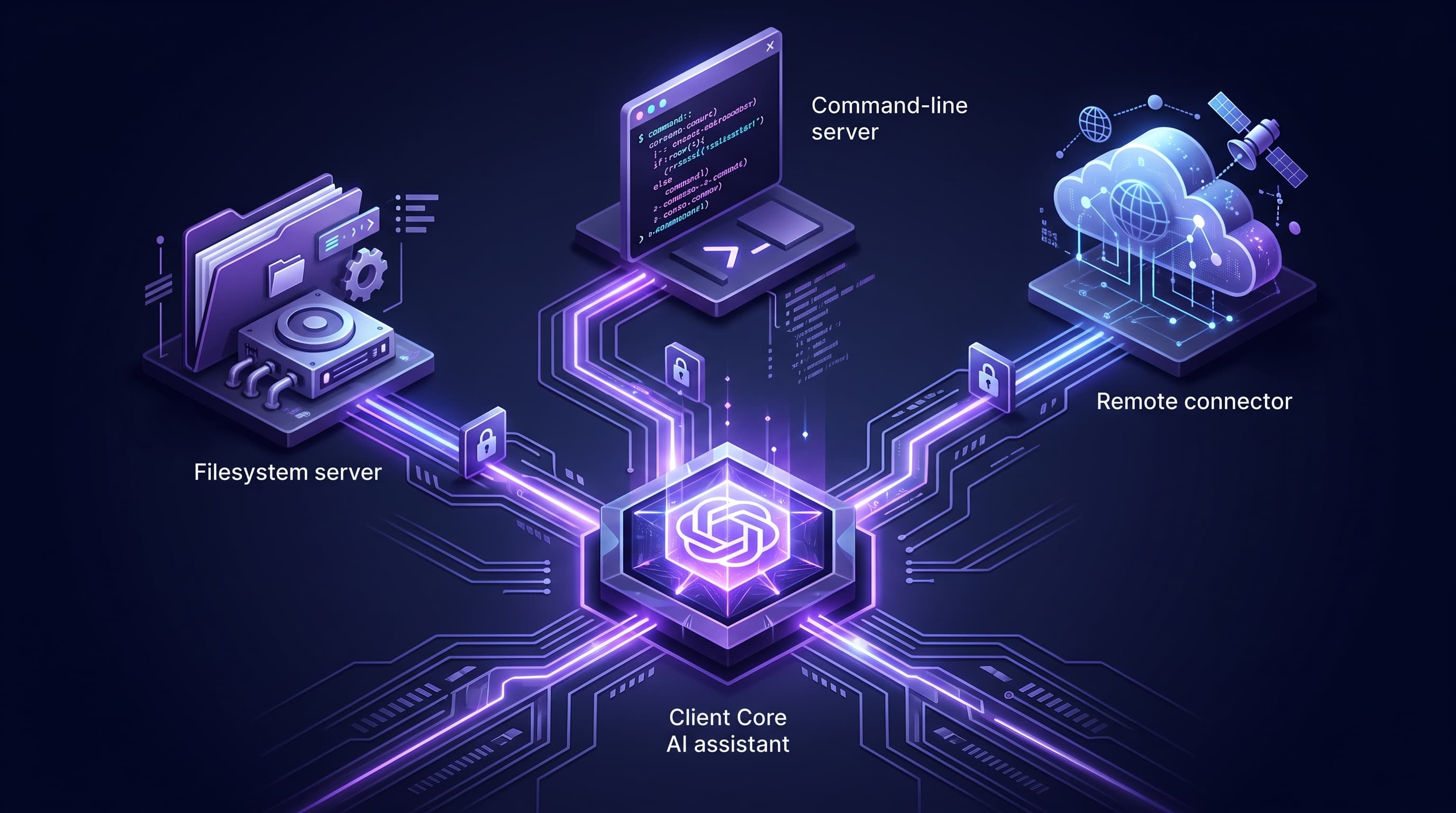
Model Context Protocol (MCP) is the open standard that lets Claude use your tools, files, and data. You set it up three ways: edit the claude_desktop_config.json file in Claude Desktop to run local servers, use the claude mcp add command in Claude Code to add servers per project, or connect a remote server as a custom connector in Claude's settings. Local servers need Node.js 18 or newer, or Python 3.10 or newer with uv; remote connectors need only a URL and run from Anthropic's cloud. This guide walks through all three, with configuration you can copy.
Model Context Protocol, or MCP, is how Claude reaches beyond the chat window. Introduced by Anthropic as an open standard, it lets Claude connect to external systems — a filesystem, a database, a GitHub repository, an internal API — through small programs called MCP servers. Once a server is connected, Claude can read, query, and act on whatever that server exposes, with your approval. This guide is written for technical users who want the fastest correct path to a working setup, whether you run Claude Desktop, Claude Code, or Claude on the web. If you would rather have it designed and secured for your team, that is what our custom AI agent work does.
Hardware and Software Requirements
MCP itself is lightweight. The protocol is just structured messages between Claude, the client, and a server; the resource cost is whatever the server does. There are two kinds of servers, and they have very different requirements. A local server runs as a process on your own machine and needs a runtime installed. A remote server runs somewhere else — your cloud, a vendor's, or a hosted service — and Claude reaches it over HTTPS, so your machine needs nothing but the Claude client.
For local servers, the two common runtimes are Node.js and Python. Node-based servers launch with npx; Python-based servers launch with uv's uvx. Install whichever your chosen servers use — many people install both. Hardware demands are modest: any machine that comfortably runs Claude Desktop will run a handful of local servers, since each is a small process. The table below is the practical baseline.
| Requirement | Why you need it | How to get it |
|---|---|---|
| Node.js 18 or newer | Runs npx-based MCP servers | Install from nodejs.org or a version manager |
| Python 3.10 or newer | Runs Python-based MCP servers | Install from python.org or pyenv |
| uv / uvx | Launches Python servers quickly | Run the uv installer, or brew install uv |
| Claude Desktop or Claude Code | The MCP client that runs the servers | Download Claude Desktop, or install Claude Code |
| A trusted MCP server | The tool or data being connected | From the official servers or a vendor |
| Public HTTPS endpoint (remote only) | Lets Claude's cloud reach a remote server | Host it, reachable from Anthropic's IP ranges |
Our recommendation for most teams: install Node.js and uv once, keep them current, and prefer remote connectors for anything shared, since they need no per-machine setup and run under central control. Reserve local servers for tools that must touch your own filesystem or reach a service only your machine can. With the prerequisites in place, the three methods below take minutes each.
Method 1: Claude Desktop (Local Servers via JSON)
Claude Desktop reads local MCP servers from a single JSON file. Open Claude Desktop, go to Settings, select the Developer section, and click Edit Config. That opens claude_desktop_config.json — on macOS it lives at ~/Library/Application Support/Claude/, and on Windows at %APPDATA%\Claude\. Each server is an entry under the mcpServers key, with a command to launch it, the arguments to pass, and optional environment variables for values like API keys.
The example below adds two servers: the official filesystem server, run with npx and scoped to a projects folder, and a Python server run with uvx. Use absolute paths — relative paths behave inconsistently at launch.
{
  "mcpServers": {
    "filesystem": {
      "command": "npx",
      "args": [
        "-y",
        "@modelcontextprotocol/server-filesystem",
        "/Users/you/projects"
      ]
    },
    "internal-api": {
      "command": "uvx",
      "args": ["my-company-mcp-server"],
      "env": {
        "API_TOKEN": "your-token-here"
      }
    }
  }
}Save the file and fully restart Claude Desktop. Reopen Settings and the Developer panel: a connected server shows a running indicator next to its name, and its tools appear behind the tools icon in the chat.
- filesystemnpx · @modelcontextprotocol/server-filesystemrunning
- internal-apiuvx · my-company-mcp-serverrunning
If a server does not start, check the logs — macOS keeps them in ~/Library/Logs/Claude and Windows in %APPDATA%\Claude\logs — where a bad path or a missing runtime is usually obvious. One shortcut worth knowing: Claude Desktop now supports Desktop Extensions, packaged servers distributed as .mcpb files that install with a double click and no JSON editing. For a well-supported server, an extension is the fastest path; for anything custom, the config file is where you work.
Method 2: Claude Code (Per-Project Servers via CLI)
Claude Code, the terminal coding agent, manages MCP servers with one command: claude mcp add. Unlike Claude Desktop's single global file, Claude Code has three scopes, and choosing the right one is the whole game. A local-scoped server is the default and stays private to you in the current project. A project-scoped server is written to a .mcp.json file at the repository root, which you commit so your whole team gets the same tools. A user-scoped server follows you across every project on your machine.
Transport is a separate choice from scope. A stdio server runs as a local process — the default. An HTTP server is hosted elsewhere and connected by URL. Any transport works at any scope. The session below adds a project-scoped filesystem server over stdio, then a user-scoped hosted server over HTTP, and lists the result.
$ claude mcp add --scope project filesystem \
    -- npx -y @modelcontextprotocol/server-filesystem ~/projects
Added stdio MCP server "filesystem" to project config (.mcp.json)

$ claude mcp add --transport http --scope user linear https://mcp.linear.app/mcp
Added HTTP MCP server "linear" to user config

$ claude mcp list
filesystem   stdio   project   ✓ connected
linear http user ✓ connectedBecause project-scoped servers live in a committed .mcp.json, a teammate who clones the repository is prompted to approve the same servers on first run — shared capability without shared secrets, since credentials stay in environment variables and out of the file. Manage the set with claude mcp list, inspect one with claude mcp get, and remove one with claude mcp remove.
Method 3: Remote Connectors (Claude on the Web, Desktop, and Cowork)
The third method needs no local runtime at all. A remote MCP server runs on the public internet, and you register it once as a custom connector; Claude then reaches it from Anthropic's cloud across every client — claude.ai, Claude Desktop, Cowork, and the mobile apps. Custom connectors are available on the free plan, which is limited to one, and on Pro, Max, Team, and Enterprise.
On Pro or Max, open your settings, go to Connectors, click the add button, and choose Add custom connector. Enter the remote server's URL. If the server requires authentication, open Advanced settings and supply an OAuth Client ID and Secret; Claude handles the OAuth 2.0 flow from there. On Team and Enterprise, an Owner adds the connector once under Organization Settings, and members connect individually.
Add custom connector
One requirement to plan for: because Claude connects from Anthropic's infrastructure rather than your laptop, the server must be reachable over the public internet from Anthropic's IP ranges. A server bound to localhost, or one sitting behind a corporate firewall, will not work as a remote connector — that is exactly the case where a local server is the right tool. Knowing which of your systems are exposed this way is part of a sound AI-enabled app inventory.
Verify, Then Secure It
Whichever method you use, verify before you trust. Confirm the server shows as connected — a running indicator in Desktop, a listed entry from claude mcp list, or an enabled connector in settings — then ask Claude to perform one small, read-only action through it. If it can list a directory or read a record, the connection works.
Then treat every server as code you are running with your access. Install servers only from sources you trust, because a local server runs with your user's permissions and a remote one receives whatever data Claude sends it. Scope filesystem servers to a specific folder, keep credentials in environment variables rather than in the config file, and prefer OAuth over long-lived tokens for remote servers. The official Model Context Protocol documentation is the authoritative reference for server behavior and transports — read it before deploying a server you did not write. This is the same review we apply when we build an emergency stop for any autonomous agent that can act on your systems.
How ITECS Sets Up MCP for Your Team
MCP is simple to start and easy to get wrong at scale. The common failure modes are an over-scoped filesystem server, a secret checked into a shared config, or a remote connector exposed wider than intended. ITECS sets it up so it is useful and contained. We select the right servers for your workflows, choose local versus remote per case, scope each server to least privilege, keep credentials out of files, and put the same identity, logging, and approval controls around MCP that we apply to any governed AI agent.
We price this the way we price all engineering work — hourly consulting or prepaid retainer hours with tracked usage, no monthly minimum and a 12-month expiry, plus a flat fee for a scoped MCP rollout across your team. We start with a data and AI readiness audit and align it with your broader AI strategy. The payoff is Claude wired into the tools your team actually uses, without opening a door you did not mean to. When you are ready to set up MCP the right way, talk to the ITECS team.