
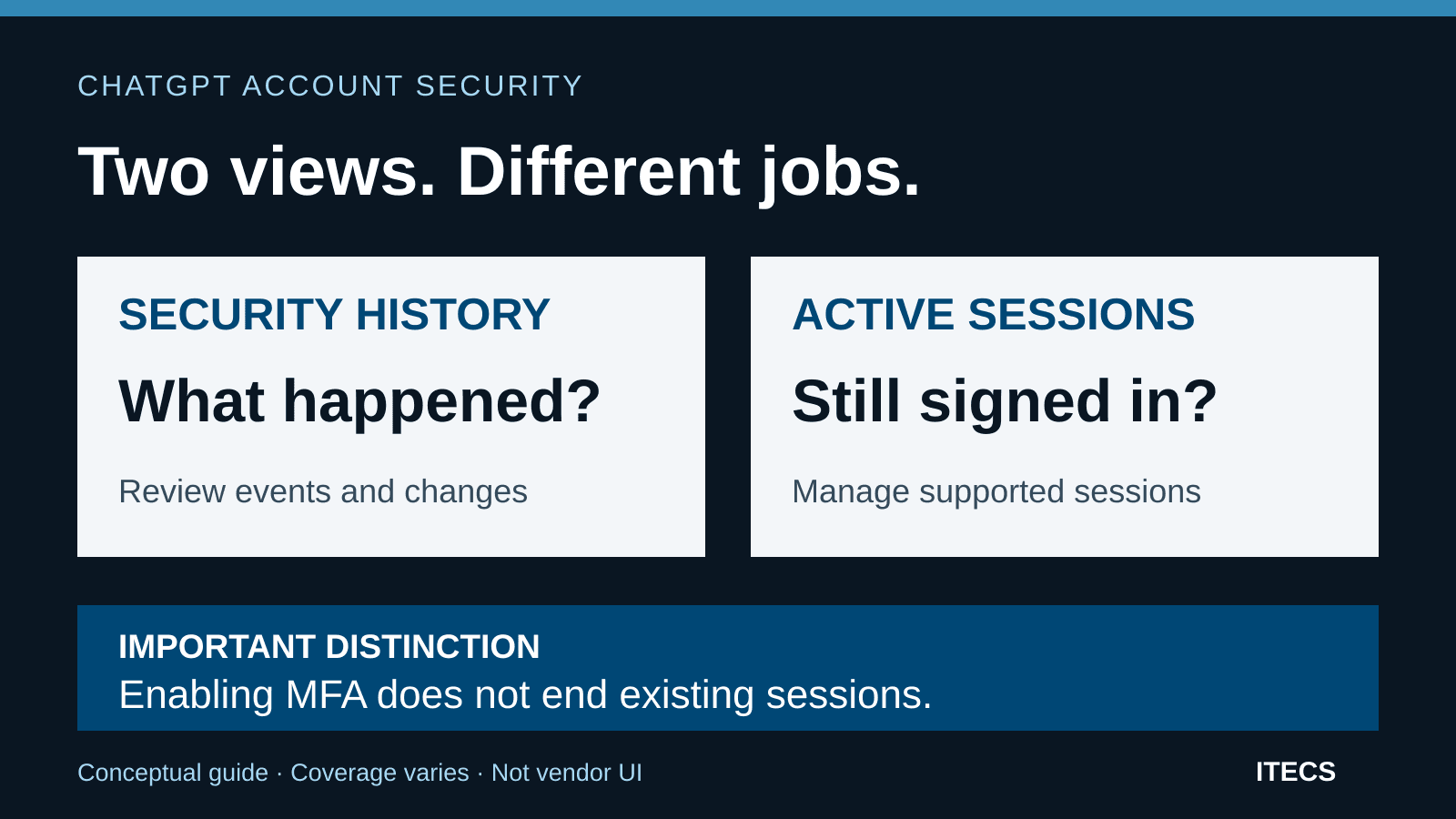
Use ChatGPT Security history to compare account activity with actions you recognize—not to declare a breach from an unfamiliar city or device label alone. If an event was not authorized, act promptly: involve the responsible account or security owner, secure access and preserve useful details. A review is valuable only when someone owns the follow-through.
OpenAI's September 25, 2026 release notes introduced Security history for reviewing recent sign-ins, sign-outs and security-setting changes. On ChatGPT's web interface, open Settings → Security and login → Security history. Review event times together with device and location information; the announcement cautions that some details can be approximate or unavailable.
Sources were checked September 28, 2026. This guide combines documented product behavior with ITECS-recommended operating practices. It is not a claim that we inspected your account. The announcement does not establish a retention period, export capability or complete organization-wide audit trail, so do not build a compliance process around those assumptions.
Start with the right account and the event itself
Confirm which account you are reviewing, including the sign-in method and relevant business workspace. Keep personal and company accounts distinct. Open ChatGPT directly through a trusted bookmark or known address rather than following an unexpected security email. If a control is missing, record that limitation and ask the account administrator or support for the applicable recovery path; do not treat an unavailable view as a clean result.
OpenAI's updated account-security guide includes password changes as well as changes to MFA, passkeys and other security settings. It distinguishes historical events from Active sessions, which is used to manage current sessions. Review both when available; a record of a past sign-in does not establish whether access is still active.
For each event that needs explanation, compare the displayed time with your own activity and approved changes. Record the displayed time zone when available rather than silently converting an ambiguous timestamp. Check whether a new browser, replacement phone, planned password reset or approved authentication change explains it. An unfamiliar device description deserves investigation, but a familiar description does not establish who actually used it.
Keep observations separate from conclusions. 'A passkey change appears at this time; the user says they did not make it' is a useful incident note. 'An attacker in that city added a passkey' adds an identity and location conclusion that the displayed evidence may not support. If a material change cannot be reconciled quickly, escalate it instead of waiting for certainty.
Preserve useful evidence without delaying containment
Our recommendation is to capture the suspicious event type, displayed timestamp, available device/location details, account identifier, discovery time and the user's explanation in a restricted incident record. Save a screenshot if permitted, and record what is missing. Keep an original restricted copy; prepare a redacted copy when evidence must be shared more broadly.
Do not copy whole chat histories, client documents, passwords, recovery codes or API key values into a general support ticket. Record a key identifier rather than its secret. Evidence collection should help responders understand the event, not create another exposure. When access appears actively unauthorized, contain it promptly rather than postponing action for a perfect screenshot collection.
Review active sessions—and understand what is outside the view
The Active sessions guide describes known active browser and first-party app sessions. Details may be incomplete, and one browser row can cover multiple OpenAI products. The view excludes connected apps, third-party app sessions, third-party-only Sign in with ChatGPT sessions and Codex CLI sessions. It also does not list recently signed-out sessions.
That guide says Active sessions is unavailable for accounts linked to organizational SSO, including SAML or OIDC—even if another method was used for the current sign-in. Do not extend that limitation into an unsupported claim about Security history availability. For managed accounts, involve the identity administrator and use the controls and logs actually available.
In the current web navigation, use Settings → Security and login → Active sessions. To end access broadly, find Log out of all sessions, select Log out all, then confirm Log out of all devices. This includes the current session. OpenAI says other ChatGPT sessions may take up to 30 minutes to end; do not promise an immediate universal cutoff.
For business recovery, separately inventory connected services and credentials that the session view does not manage. Assign their owners to verify revocation where required. Our ChatGPT external-access guide explains why identity sign-in and delegated app access require separate decisions. An empty session list is not proof that every business integration has been disconnected.
Secure credentials, then strengthen future sign-ins
OpenAI's suspected-compromise guidance recommends changing an exposed password if you use one, logging out all sessions, reviewing unfamiliar activity and contacting support. If the account uses the API, it also calls for deleting API keys and checking usage. Enabling MFA is a follow-on protection, not a substitute for ending existing access.
For password-based sign-in, use a new, unique password through the official recovery process. OpenAI's unrecognized-activity instructions describe using Forgot password? from the login flow. For Google or Microsoft authentication, that guidance directs you to reset the corresponding provider password. For organization-managed sign-in, coordinate with your identity team rather than inventing a separate ChatGPT password reset.
Use a trusted device for recovery. If a device or email account may also be compromised, have the appropriate owner address that exposure. Review whether the enrolled authentication methods are still yours and escalate unfamiliar changes. Restoring one login is not enough if the recovery channel or endpoint remains under someone else's control.
Once existing access has been addressed, follow the available setup under Settings → Security and login → Multi-factor authentication (MFA). OpenAI's MFA guidance says options vary by device, country, account tier and account creation method. Complete enrollment and verify that you can sign in and recover access securely. Do not approve a verification request you did not initiate.
The same guidance explicitly says MFA does not automatically sign out existing devices. It also says native MFA enforcement is not currently available at the ChatGPT workspace or API Platform organization level. Business owners should verify the actual identity-provider and account controls with IT, not promise that one workspace setting has enforced MFA for everyone.
Handle API exposure as a separate recovery task
Do not assume a ChatGPT password change rotates application credentials. For a suspected account compromise involving API access, follow the account-security guide's broader key-deletion advice. For an isolated exposed key, revoke that affected key promptly and investigate its usage. Distinguish the incident scope instead of treating every unfamiliar city as proof that all production keys leaked.
OpenAI's API key safety guidance recommends immediate rotation when a leak is suspected and updating production applications with replacement credentials. Have the application owner identify dependent workloads, revoke exposed access, install replacements through approved secret storage, and verify recovery. Do not leave a known-compromised key valid simply to avoid a planned interruption.
Review API usage in the relevant organization and project against approved work. Record unexplained activity and its timing, and involve the spend owner where charges are affected. Keep new keys out of browser code, repositories and incident notes. Test that legitimate workloads use the replacement and that the old key is revoked; record the result without printing either value.
Escalate with a concise, useful incident record
Contact OpenAI Support through the official Help Center chat. Its support guidance asks for a clear issue description, account and workspace identifiers, relevant timestamps and time zone, and suitable diagnostic details. Share sanitized screenshots when useful. Never include passwords, one-time codes or secret keys, and do not promise a specific recovery deadline.
For a business account, notify the internal incident contact at the same time. Record what was observed, what remains uncertain, actions taken, who took them, their timestamps and the next review point. A business or data owner should assess possible exposure and involve privacy or legal specialists when needed. Do not claim that account recovery proves no information was accessed.
| Owner | Responsibility |
|---|---|
| Account user | Identify activity they performed, report discrepancies and complete authorized recovery steps. Never share a password or verification code. |
| IT or identity owner | Check approved devices and identity-provider evidence, handle managed sign-in recovery and verify offboarding access changes. |
| Security or incident lead | Triage uncertainty, preserve restricted evidence, coordinate containment and decide when the incident can be closed. |
| API or application owner | Inventory affected keys and dependent workloads, revoke exposed credentials, deploy replacements and reconcile usage. |
| Business or data owner | Assess potentially affected information and business work; involve privacy or legal specialists when warranted. |
For example, imagine a traveling manager sees an unfamiliar location and a passkey change they do not recognize. This hypothetical scenario is not an ITECS customer incident. The team checks the approved travel and device history but treats the unexplained security change as a reason to escalate. The incident lead coordinates containment while the user preserves the event details. A travel explanation for one clue does not resolve every event in the sequence.
Make reviews routine and event-driven
ITECS recommends a short review after travel, device replacement, authentication changes or a security alert, with a regular cadence proportionate to the account's business access. Staff departures should trigger a managed offboarding review by authorized owners—not a request for the departing employee's password or access to an unrelated personal account.
Assign a primary reviewer and backup, define where evidence belongs, and set an escalation route for activity the user cannot explain. After an incident, verify the actions actually completed, revisit relevant sessions and usage, and document unresolved coverage gaps. A button click or a lack of new alerts is not a complete closure test.
Use role-specific AI training to teach users how to recognize and report concerns without guessing at attribution. Through AI consulting, ITECS can help connect account reviews with identity administration, application ownership and incident procedures. Discuss your business AI security routine to turn a new settings page into a repeatable, accountable practice.