
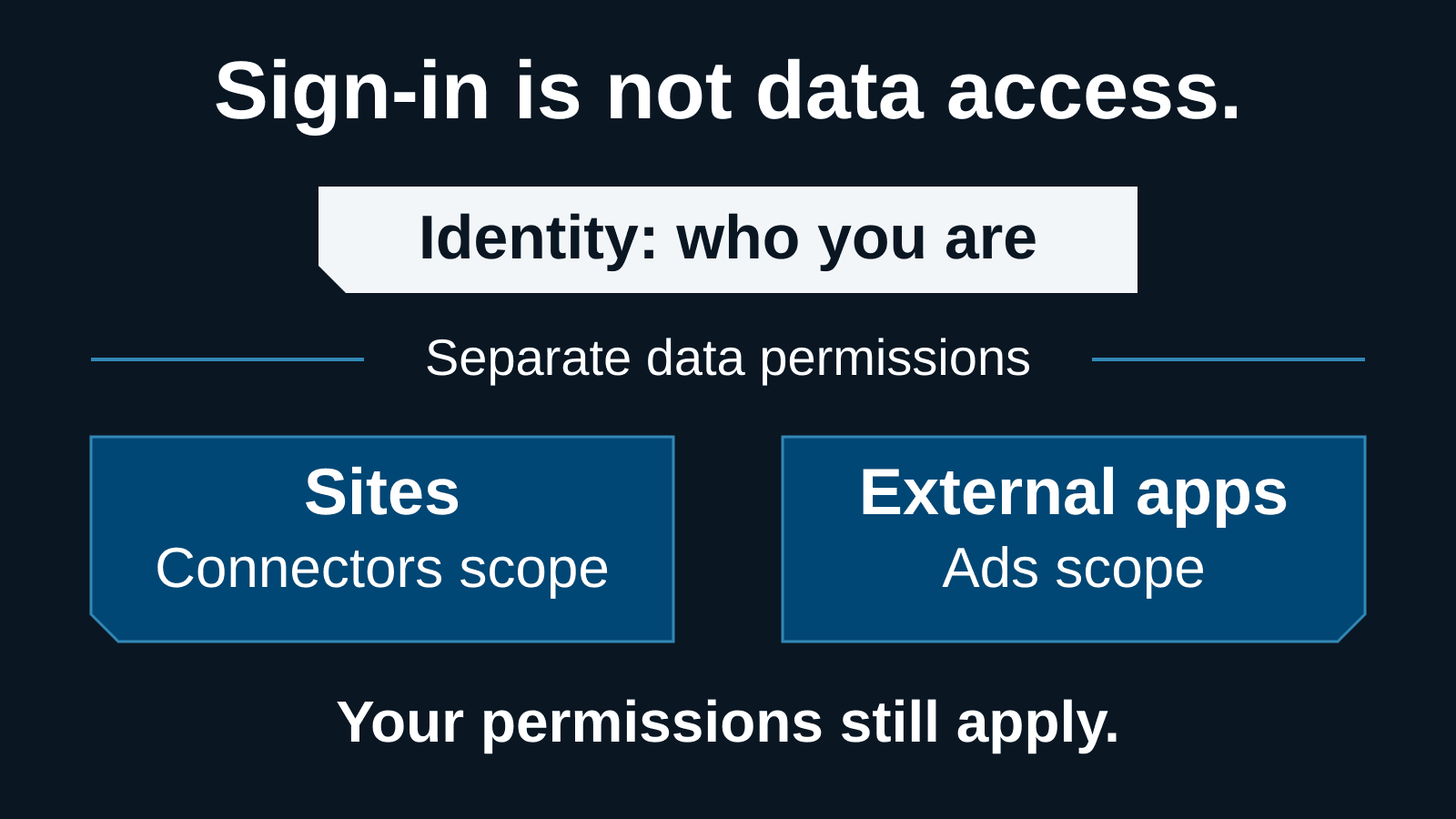
Keep ChatGPT's external data permissions off until a named business owner approves a specific use case. Then test one connection with synthetic records, verify both allowed and denied access, and prove that you can revoke it. Signing in should establish who someone is; it should not be treated as permission to expose business data or operate an advertising account.
OpenAI's September 24, 2026 Enterprise release notes introduce global-admin controls for Sites using members' connected apps and applications accessing ChatGPT Ads. Both permissions are off by default during the admin preview, and identity-only sign-in remains separate. This is an access-governance change—not a reason to enable every integration.
Sources were checked September 25, 2026. The launch entry names Enterprise organizations; the current Sites and HubSpot setup guides also describe Business eligibility for delegated access. Verify the controls in your actual tenant rather than assuming the announcement applies identically to every plan. The rollout below is ITECS guidance, not a claim that we tested your account or a report of a customer deployment.
Start with the tenant and accountable administrators
The Admin Console guide places these controls under External access. Workspace, Ads and HubSpot administration do not automatically confer OpenAI global-admin authority. Confirm the account, organization and role.
Create a short approval record: business purpose, sponsor, technical owner, organization identifier, workspace or Ads account, provider account, intended users, allowed data, allowed actions, expiry and recovery contact. Have the relevant owners verify those identifiers together. An email address or familiar logo is not enough to distinguish a production account from a personal or test account.
Inventory live Sites and external applications before the pilot. Include abandoned prototypes, shared dashboards, accounts with no current owner, and workflows that depend on an employee's personal connection. Mark each as retain, investigate or retire. Do not expand access merely to make an unexplained entry stop showing an error.
Treat identity, delegated scopes and actions as separate decisions
Following the Admin Console instructions, select the organization, open an application (add it through Enable apps if needed), and inspect Scopes. Sites requires Identity and cannot be disabled here. Connectors controls Sites' delegated access; Ads controls an external app's Ads access. Disable either data scope without changing Identity. Wait for App access updated. A Confirm change prompt may switch all-app access to selected-app approvals; inspect it before accepting.
Our recommendation is to keep Connectors and Ads off until the approval record is complete. Document the reason for every enabled scope. Do not enable both just because they appear next to each other, and do not mistake an organization-wide setting for a per-Site allowlist.
OpenAI's Sites administration guide says organization approval covers current and future Sites. Each visitor still authorizes their own access. Workspace capability, individual-app availability, member consent and source permissions must also permit the request. Publishing or sharing a Site is a separate decision and does not independently authorize connected data.
Pilot Sites with synthetic records and two different users
Choose one low-risk connected app that your workspace already supports. First verify the selected pilot users can access the intended sample data directly in that provider. Do not start with a full CRM, personnel files, customer contracts or a shared administrator account.
For example, imagine an internal service-status Site with five invented customer records. Give pilot user A access to those records and user B access to only two. Specify the exact fields the Site may display and the actions it must not perform. This is a hypothetical test design; it is not a claim that a particular app offers row-level controls. If the provider cannot enforce the intended separation, choose a different test source or use isolated test accounts.
After the global admin enables the approved Connectors scope, have the workspace owner check Sites and app availability. Each tester should sign in, inspect the requested access and complete their own authorization. Ask both users the same question. Compare returned records with direct source access, including fields that should be excluded. Inspect downloads and error messages as well as the visible dashboard; a hidden field can still leak through an export or debug response.
Also test a person outside the workspace. The Sites guide distinguishes external viewing from membership or editing; removing an invitation may leave another audience-based access path. Test an uninvited account separately from an invited viewer. Do not infer delegated-access eligibility from a successful page load.
Sites currently lacks data and inference residency support, according to that guide. Keep this pilot synthetic until your data owner has reviewed the applicable handling requirements. Ask where fetched data is stored, whether it is cached or copied, who can export it, and how long diagnostic records remain. Test those properties rather than assuming that live retrieval means nothing is retained.
Test the HubSpot Ads connection as a separate workflow
The HubSpot setup guide requires appropriate HubSpot and ChatGPT Ads permissions, plus global-admin approval for Business and Enterprise organizations. In HubSpot, use Settings → Tools → Marketing → Ads → Connect account → ChatGPT Ads, then complete the account selection and authorization. A Restricted account can indicate missing organization approval; if approval is present, involve the account admin.
Select the organization that owns the Ads account, not merely the tenant an operator used most recently. Record the exact HubSpot account and advertising account before connection. Have the marketing owner define whether the intended use is reporting, campaign preparation, lead handling or campaign management; these have different business consequences.
For the first test, keep campaign publication, budget changes and automated CRM follow-up out of scope. Use test facilities where the provider supports them; do not invent a sandbox or assume a connection is read-only. If an authorization bundle requires more authority than the pilot permits, keep it disconnected until the owner accepts a narrower workable design or explicitly approves the broader access. A connected badge is not evidence that the right accounts are connected.
Verify the completed state in both products, compare available account information with the approved record, and confirm no unintended campaigns or automations were created. Separate approval to connect from approval to launch advertising or spend money.
Check every permission boundary—not just the green switch
OpenAI's plugin and app administration guidance distinguishes plugin installation, app access, available actions and provider permissions. Business app availability is workspace-wide; Enterprise and Edu can use supported role controls. Not every app exposes configurable action controls. A source provider may require approval from a different administrator.
Use that distinction to assign work: the global admin owns the external scope; the workspace owner checks eligible users and app settings; the provider owner checks the connected identity and granted permissions; the business sponsor approves the data and outcome. Before expanding, each owner should sign off on the actual observed behavior at their boundary.
Do not label an approval preference as a security restriction. The app permissions guide says Allow read actions permits reads without prompts and asks before changes; it does not disable writes. Permissions settings do not grant source access or override workspace policy. Where supported, use action controls and source permissions to restrict what is possible, and test approval behavior separately. Do not assume a conversational approval setting governs every Site or external Ads application's behavior.
Use a small acceptance matrix before expanding access
For each test, save the expected result, observed result, timestamp, account identifiers, reviewer and sanitized evidence location. Use synthetic identifiers in screenshots; never put tokens, authorization codes or production records into a rollout ticket. The following tests are recommended acceptance criteria, not promises about every preview configuration.
| Test case | What to verify |
|---|---|
| Approved member | Read a synthetic record and compare the returned fields with the approved source. Record the actual provider account, not just the displayed app name. |
| Restricted member | Attempt the same request with a pilot account that lacks the record permission. Pass only if no restricted content appears in the page, response, export or diagnostic output. |
| Nonmember or wrong account | Try an uninvited visitor and, separately, an authorized external viewer. Check the intended audience experience; neither test should expose another user's connected records. |
| Denied consent or revoked scope | Decline the authorization request, then separately revoke an approved scope. Reopen the workflow and test fresh retrieval; record any continued access and its cause. |
| Ads connection without campaign approval | Verify the chosen HubSpot and Ads accounts and permitted reads. Confirm the pilot has not published a campaign, changed a budget or triggered CRM follow-up. |
| Interrupted connection | Cancel or interrupt setup. Compare saved scopes, provider grants and connection status before an owner decides whether to complete or remove the partial connection. |
| Offboarding | Remove the pilot user's relevant membership and provider access using approved procedures. Test remaining sessions, alternate accounts, Site audiences and retained outputs separately. |
Treat an unexpected successful read as a failure even if the dashboard looks useful. Investigate whether the result came from the intended live connection, another account, copied content or cached output. A denied request is only useful evidence when you know which boundary denied it.
Reconcile failed or partial connections before retrying
An interrupted authorization can leave the two products showing different states. Capture the error and relevant identifiers, refresh the admin view, and inspect saved scopes and provider grants. Determine what completed before asking someone to repeat the flow. Avoid duplicate accounts, broader permissions or repeated authorizations as troubleshooting shortcuts.
OpenAI's connected-account guidance notes that an installed plugin may not have a usable app connection. Required provider authorization still has to complete. If the required permission bundle exceeds policy, select fewer supported apps or choose another workflow; do not partially approve a required bundle and assume the connection is healthy.
Assign one owner to complete or remove a partial connection, then repeat the failed case once the state is understood. If the problem persists, give support the organization, workspace or Ads account, application, time and sanitized error. Keep the pilot paused rather than authorizing additional access to get past a warning.
Prove revocation, then document offboarding and review
Test fresh requests after revoking the relevant external scope, disconnecting the pilot account and removing its source permission—separately, so you can identify the effective control. Record elapsed time and any residual access you observe; do not promise an undocumented immediate revocation deadline. Check active sessions and alternate accounts, not just a newly opened browser window.
The connected-account guide says disconnecting stops future access through that account, but other accounts or administrator-managed connections may remain. It does not automatically erase conversations, files or memories. Review retained material separately. HubSpot's disconnect instructions use Settings → Integrations → Connected Apps → ChatGPT Ads → Actions → Uninstall. That does not delete the Ads account or existing campaigns. Verify campaign state in Ads Manager; disconnection is not a campaign-stop procedure.
For audit evidence, establish what your tenant, workspace and source provider actually expose. The Admin Console guide distinguishes tenant and workspace audit logs and qualifies availability. Do not promise that every consent, retrieval or external-app action appears in one log. Map your required events to available records; where coverage is missing, retain a controlled change record and label the gap before approving sensitive use.
Set a monthly review while the preview is changing, plus a review whenever a Site owner leaves, a provider changes scopes, an app gains actions or a workflow starts using more sensitive data. Renew the owner, purpose, audience and test evidence; disable access that nobody can justify. Train owners to recognize the correct account, understand what they are consenting to and report unexpected data immediately.
Expand only when the controls work in practice
Measure successful authorized tasks, denied-access test results, unresolved permission mismatches, revocation outcomes and owner review completion. Count the time spent reviewing and correcting work alongside any convenience gained. Do not use the number of connected apps as a success metric.
A useful pilot ends with a repeatable setup record, a verified permission map and a tested way to stop access. If your team needs help defining that pilot, ITECS AI consulting can help translate the business use case into an access and acceptance plan. Pair it with role-based AI training, and use our Voice for Work pilot guide when people will invoke connected workflows by speaking.